Video Tutorials
Watch the taps, then make them
Short videos recorded in the Zeus app. Each one covers one screen or one task, from first setup to the paid invoice.
30 videos
- App Tour2:37Part 01Getting StartedApp TourFind your way around Zeus: the Home dashboard, search, the More page and Create New.
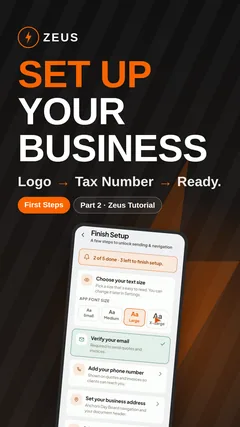 2:14Part 02Getting StartedSet Up Your Business ProfileAdd your logo, contact details, trade, license number, office location and the tax number that prints on your invoices.
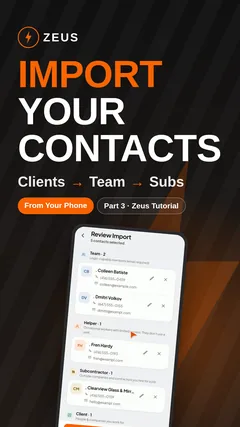 1:11Part 03Clients and TeamAdd Contacts from Your PhoneBring clients, team members, helpers and subcontractors in from your phone contacts and mark each person’s role.
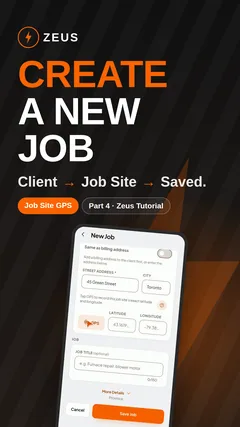 1:51Part 04JobsCreate a New JobChoose the client, enter the job site address, record the exact location with GPS and describe the work.
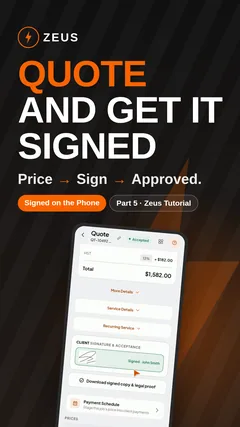 4:06Part 05QuotesCreate a Quote and Get It SignedAdd line items, photos and a discount, then have the client sign the quote right on your phone.
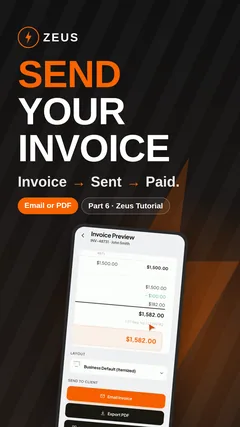 3:58Part 06Invoices and PaymentsTurn a Quote into an InvoiceMake an invoice from a signed quote in one tap, email it or export a PDF, and follow its status from Draft to Sent to Paid.
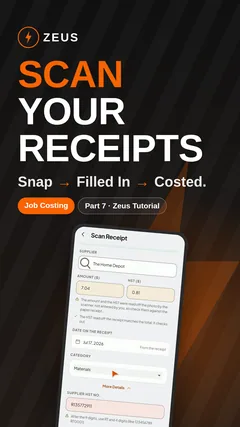 2:34Part 07Receipts and CostsScan Receipts into Job CostsSnap a receipt, check the supplier, date, total and tax Zeus fills in, and save the cost to the job.
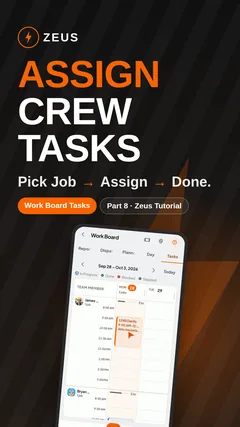 4:02Part 08Scheduling and CrewAssign Tasks on the Work BoardGive a work plan step to a team member with a start time, duration and color, then follow the progress on the job.
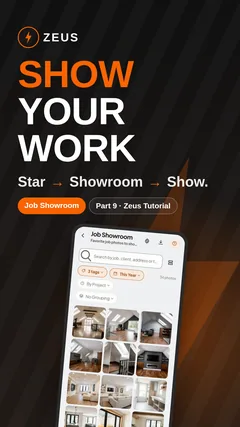 2:18Part 09Photos and ShowroomShowroom Photo GalleryStar your best job photos and show them to a client from your phone, grouped by job or by tag.
 2:26Part 10Sales and OpportunitiesOpportunities and UpsellsRecord the equipment you installed and the work you spotted for later, so a slow week starts with a list.
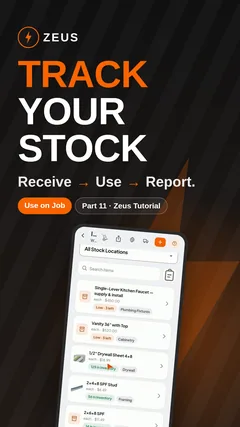 4:08Part 11Inventory and MaterialsInventory and StockTrack the materials in your workshop, van and trailer: what came in, which job it went to and what is running low.
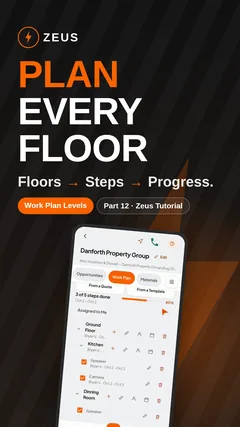 3:47Part 12JobsWork Plan LevelsBuild a work plan by building, floor and room, give each step to a team member and watch the progress fill in.
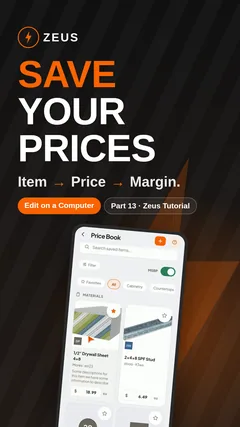 2:57Part 13Inventory and MaterialsPrice BookSave your rates, parts and fees once, with your cost, margin and photos, and use them on every quote.
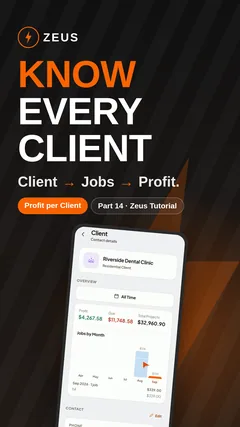 1:14Part 14Clients and TeamClient InsightsOpen any client to see their jobs by month, the profit, what is still due and every quote and invoice.
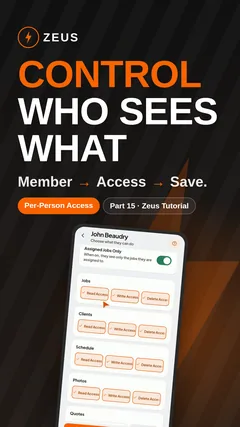 1:31Part 15Clients and TeamTeam Roles and PermissionsChoose what each team member can see and do, one feature at a time, including whether they see financials.
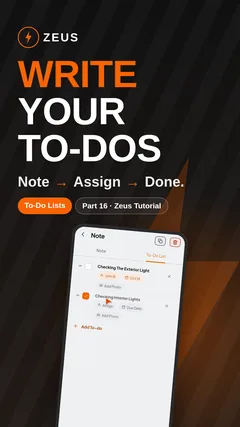 1:22Part 16JobsNotes and To-Do ListsTurn a note on the job into a to-do list, give each task to a team member and tap Done when it is finished.
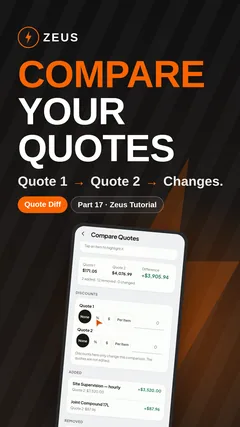 1:49Part 17QuotesQuote DiffPut the first and the last version of a quote side by side and see every item, discount and tax that changed.
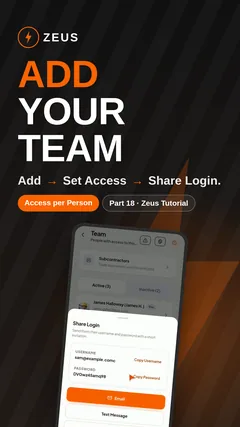 4:38Part 18Clients and TeamAdd Team MembersAdd a team member with Admin, Office or Field Tech access, send their login and manage everything from their page.
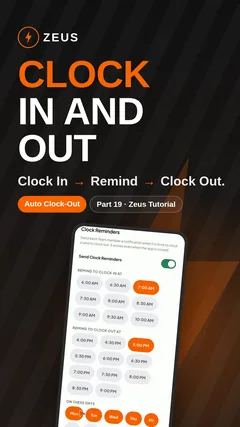 1:43Part 19Scheduling and CrewTime ClockTeam members clock in and out on the job. Set the distance rules, reminders and Auto Clock-Out once for everyone.
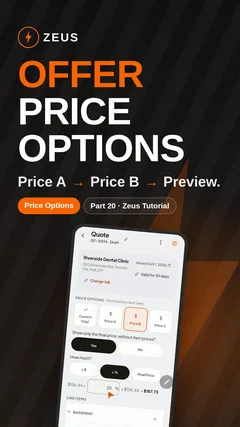 3:36Part 20QuotesAdvanced Quote OptionsSet dates, terms, the client signature, photos and a payment schedule, offer price options and pick a layout.
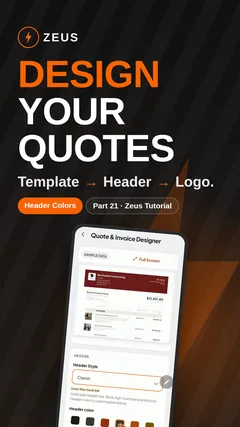 1:51Part 21QuotesQuote and Invoice DesignerPick the template, header, logo, font size, photo size and signature once, for every quote and invoice you send.
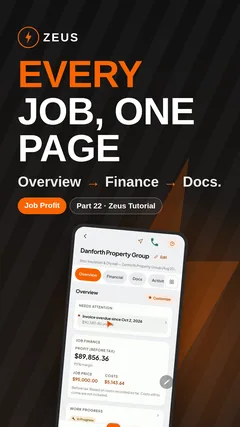 6:03Part 22JobsJob Page OverviewA tour of every tab on a job: profit and costs, finance, docs, photos and the day log, the work plan and materials.
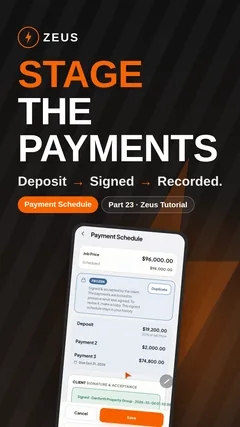 3:21Part 23Invoices and PaymentsPayment ScheduleSplit the job price into a deposit and staged payments the client signs, then record each payment against it.
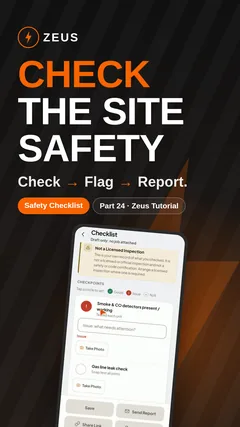 1:36Part 24ChecklistsSafety ChecklistsWalk the site with a template for your trade, mark each item, add photos and link the checklist to the job.
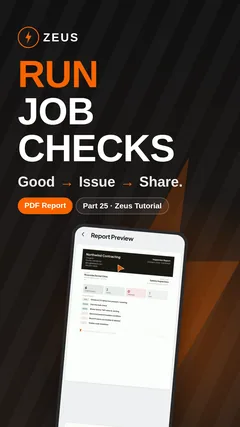 1:36Part 25ChecklistsJob ChecklistsRun a checklist against a job, add photos and a recommendation, and share the report as a PDF.
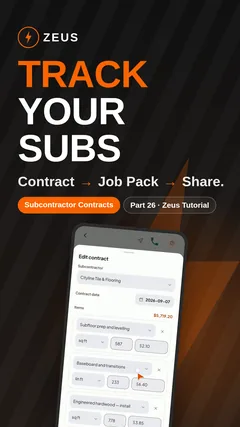 1:41Part 26Clients and TeamSubcontractorsOpen a subcontractor, send them a Job Pack for a job and see each contract’s items, quantities and prices.
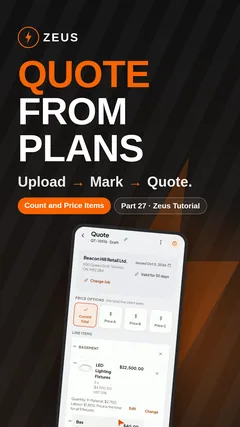 4:59Part 27Drawings and TakeoffQuotes from DrawingsUpload drawings as a PDF, drop a marker on each fixture, and Zeus counts and prices them into a quote.
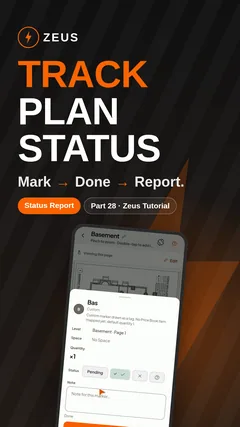 1:20Part 28Drawings and TakeoffDrawing Status ReportMark each item on your drawings done or not done, note the reason and see the job’s progress in one report.
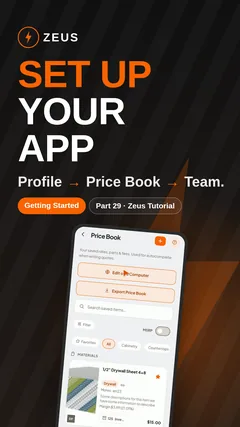 3:35Part 29Getting StartedGetting Started SetupThe quick settings after you add Zeus: company profile, PDF font, app language, Price Book, team and Home screen.
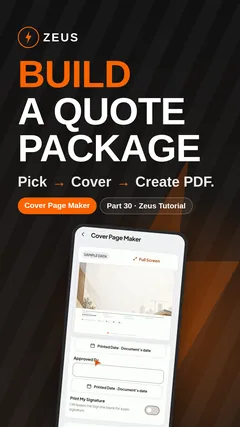 1:29Part 30QuotesCombined PDF PackagesPick a job’s quotes, add a cover page and send the client one combined PDF instead of a pile of files.
Videos play from YouTube. Nothing loads from YouTube until you press play.
Prefer reading? Step-by-step guides ZEUS
ZEUS